
Visual bookmarks
Webdoka New Tab has two display modes for visual bookmarks. You can switch between them at any time and choose the one that suits you best.
Thumbnail mode
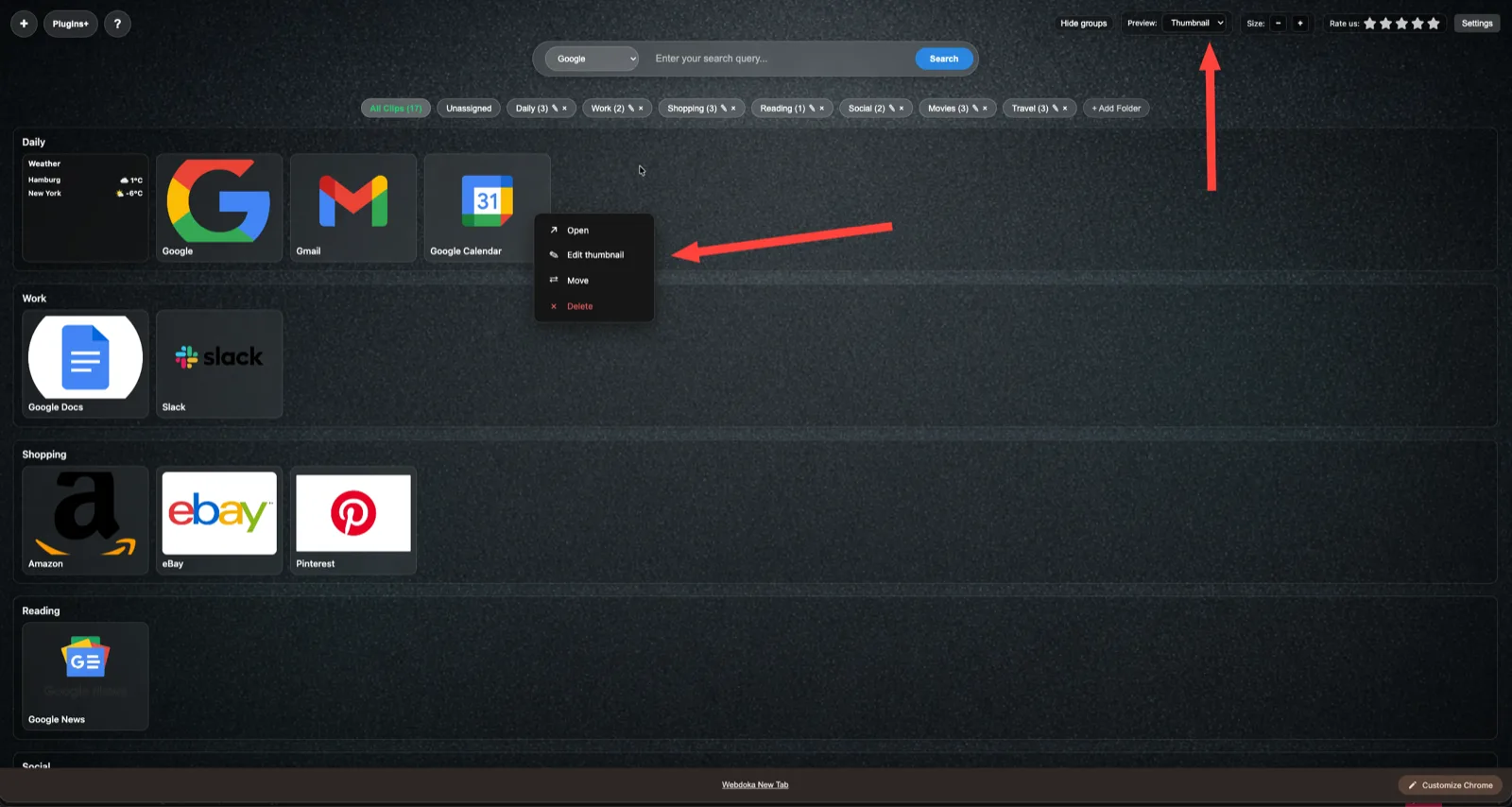
In this mode bookmarks are shown as cards with site preview.
- Best when:
- you orient by how sites look
- you want to recognise pages at a glance
- you have a moderate number of distinct bookmarks
- In Thumbnail mode:
- each bookmark is a card with site image
- you can upload and edit your own thumbnail
- actions available via context menu
Icon (Favicon) mode
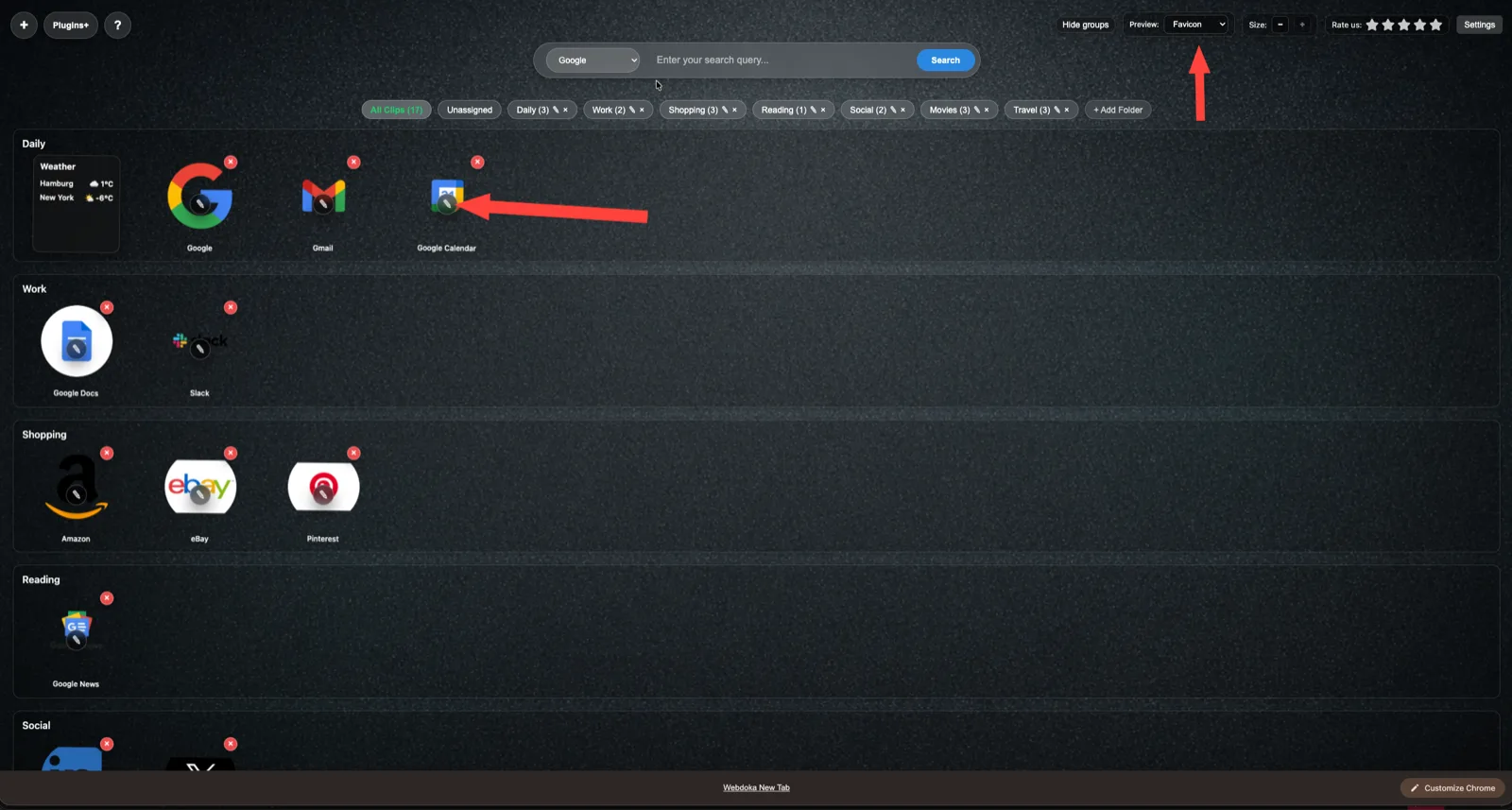
In this mode bookmarks are shown as compact favicons.
- Best when:
- you have many bookmarks
- density and order matter
- you want more items on screen at once
- In Icon mode:
- compact view without site previews
- neat icon grid
- quick access to bookmark actions
How to switch display mode
The mode switch is in the top bar:
- click Preview
- choose: Thumbnail or Favicon
- Change applies immediately, no reload.
How to edit bookmarks
- In Thumbnail mode: right-click the card; context menu: Open, Edit thumbnail, Move, Delete.
- In Icon mode: right-click the icon; management mode; edit, move, delete. To exit: press Esc or click empty area.
Summary
- Webdoka New Tab supports two visual bookmark modes
- you can switch between them freely
- each mode suits different use cases
- bookmark actions are available in both modes
- Choose the format that fits your workflow.