
Welcome to Webdoka New Tab browser extension
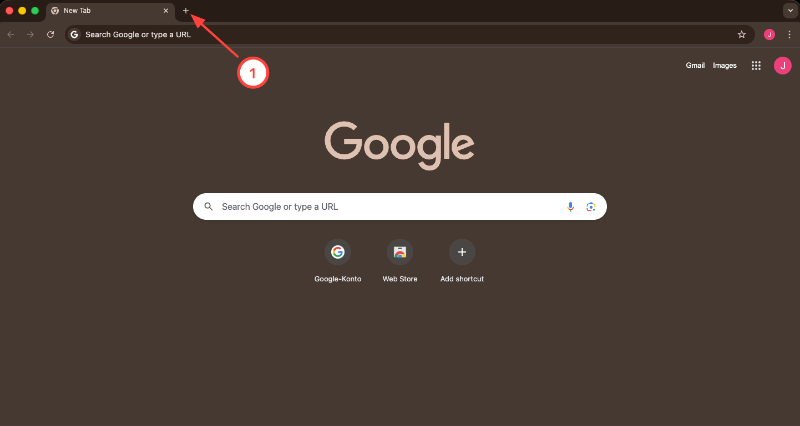
After you install the extension, click the new tab plus button to open a new tab.
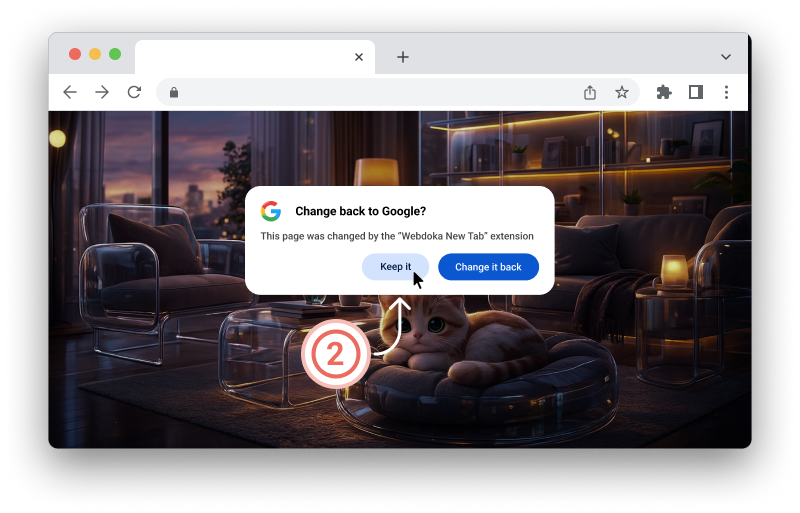
When opening a new tab in your browser for the first time, to continue using the new Webdoka tab, click the "Keep it" button.
Your new visual dashboard
After installation, you can clip any part of a page or the entire page on any site. It will be saved as a visual bookmark in your new tab.
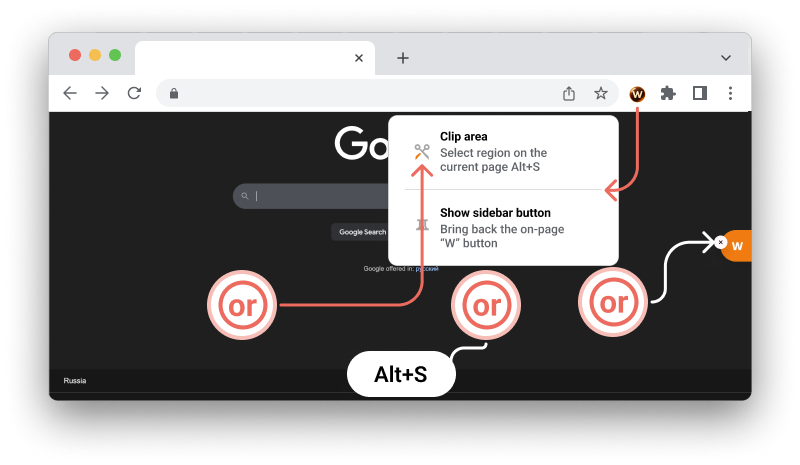
Capture a page area. Select a rectangle on the page; the extension saves the screenshot and adds it to the library.
Start capture:
- From the "Capture area" context menu
- With hotkey Alt + S
- From the extension popup